 LumoFind
Product guide
LumoFind guide: from installation to search that helps people buy
What shoppers see, what you can change in Shopify and how to check that your catalog, filters and cart behave the way you expect.
A store can have thousands of well-organized products and still lose the customer who types two words into search. The problem usually appears between intent and catalog: they type a measurement without a space, use a collection name instead of the item’s title, misremember a brand, or see an accessory before the product they wanted. This guide explains how LumoFind works along that journey and, above all, what to check in your own store.
Every plan includes search and add to cart for the main catalog. The steps on filters, relevance, markets, Learning, and reports apply once the advanced engine has been enabled for your store. To check on activation or request the assistant, contact support and include your .myshopify.com domain.
1. Prepare the catalog before touching the design
Install the app from the Shopify App Store and choose a plan based on your expected products and sessions. The dashboard tells you when the initial preparation is finished. The time depends on catalog size and on the translations and markets you’ve published; an installation with many contexts takes longer than a single-language store.
LumoFind indexes public product data: title, description, brand, type, collections, tags, and variant options, plus SKUs and codes when Shopify provides them. You don’t have to copy your catalog into another dashboard by hand. Changes arrive in the background and the app reconciles prices per market; during an update, it keeps serving the last valid version. That avoids a sudden gap, though an update shouldn’t be mistaken for a to-the-second real-time guarantee.
2. Enable search in your theme
In “Setup,” open the theme editor and turn on the app embed for LumoFind. Save and test the real search button on desktop and mobile. If your theme has a custom icon, the dashboard lets you adjust the selector that opens it. This part matters: a search app can respond quickly and still feel slow if the shopper reaches the theme’s native search form first.
Also test going back. Open a product from a result, go back, and confirm that the query and filters still make sense. To revert the storefront presentation, disable the block in the theme editor. The app’s settings and index remain in the dashboard as long as the installation stays active.
3. Understand the first second
When search opens, LumoFind shows available products as a starting point. The first card can appear before filters and controls finish loading; the full interface follows. After three characters, it starts the query without requiring Enter. If the visitor keeps typing, the previous request is canceled so that stale results don’t replace newer ones.
Regular search prioritizes products that can be bought. By default, out-of-stock products aren’t mixed in. If the store enables the option, someone looking for a specific item can open “More filters” and choose “Out of stock only.” It’s a deliberate path for people who want to view a product page or sign up for a back-in-stock alert the store offers; an out-of-stock card can’t be added to the cart.
4. Why one result ranks above another
The engine combines matches on code, title, collection, type, brand, attributes, and text. A rod should come before a rod sleeve if the query names the rod; an exact SKU should be easy to find. Tolerance for typos and measurements like “20mm” helps when the shopper only half-remembers the term. It doesn’t turn any word into any product: correction needs context so it doesn’t confuse brands, models, or codes.
When the general ranking isn’t enough, use “Search rules” for a business exception in your catalog. For example, you can prioritize a specific collection for “bivvy” or narrow “batteries” so that products that merely include a battery don’t dominate. Rules are per store; they shouldn’t change how other merchants’ stores behave. Test them in the same language and market the shopper uses before publishing them.
“Synonyms” connects common ways of asking for the same thing. “Learning” presents reviewable suggestions based on aggregated signals: it doesn’t activate terms on its own. Human approval is useful, because in one store “alarm” can mean a category and in another an accessory. Here’s how to turn zero-result searches into concrete improvements.
5. Filters, variants, and purchase
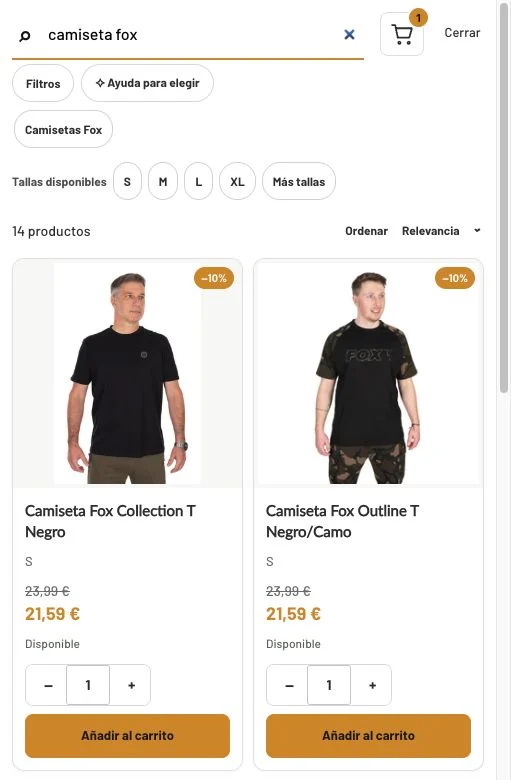
Brand, collection, price, sale, and variant options are calculated from the results in the current context. Size or measurement options should match the search: if someone types “t-shirt,” sinker sizes in millimeters are no use to them. On mobile, a few compact refinements are shown and the rest go under “More filters.” Long brand and collection lists have a search box inside the dropdown.
The card shows the image, variant, price, and compare-at price when Shopify provides a valid comparison. The shopper chooses the quantity and adds to cart from the results. Availability is checked again in the Shopify cart: if someone asks for more units than are left, LumoFind shows what Shopify accepted along with a notice. Payment still happens in Shopify; LumoFind doesn’t replace checkout.
6. Languages, countries, and availability
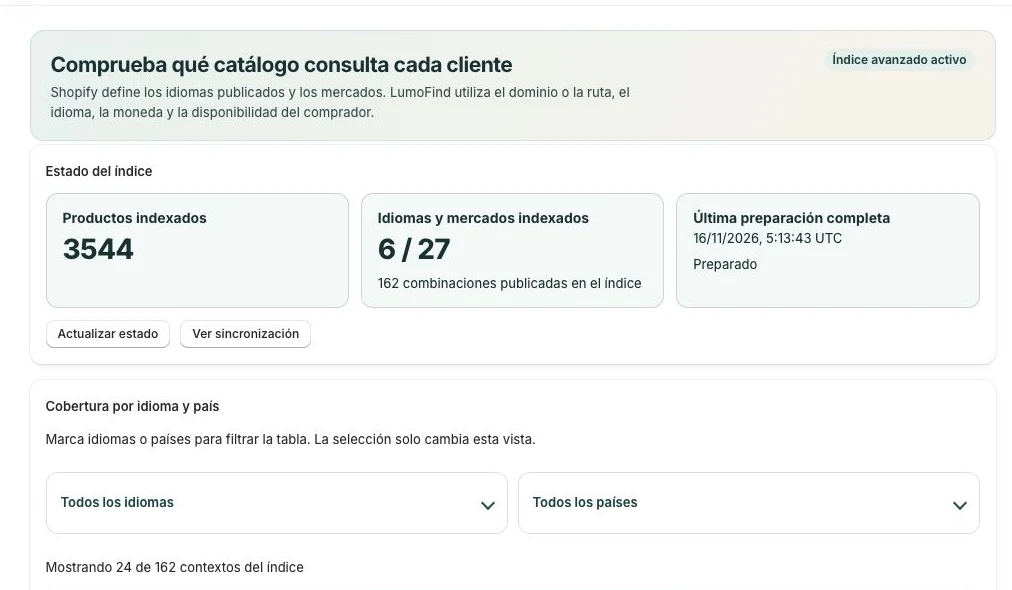
Shoppers don’t choose a language or country inside search. LumoFind uses the context of the store and the domain published in Shopify. An incomplete translation can’t produce perfect search: review titles, collections, and variant options in the languages you sell in. Likewise, price and availability need to be checked in the target market, not just in the Spanish storefront.
A minimum test of a different market includes a three-letter search, a product with variants, a sale item, and an out-of-stock item. Open the product page and check that currency, link, and availability match Shopify. If a translation is missing, fix it in the catalog: a relevance rule doesn’t replace a missing title.
7. Assistant, design, and analytics
The assistant is for questions that need guidance, not for delaying the product list. It’s configured per store and has usage limits. It can answer with candidates from the catalog and review images when that feature is enabled; it’s worth checking its answers against real products, since a photo alone doesn’t prove a technical specification. Text search keeps working without waiting for the AI.
In “Design,” you can adjust colors, typography, cards, and buttons without editing the theme. “Recommendations” allows an editorial selection and collections. The dashboard distinguishes between saving a draft and publishing a change. Before activating a new design, test the card with a long title, a discount, a variant, and an out-of-stock product at mobile width.
Analytics show completed searches, zero-result queries, clicks, and cart actions when there is analytics consent. Don’t read “added to cart” as “purchase.” Compare equivalent periods and look at the breakdown by language: a global average can hide a term that fails in just one market. Check the measurement guide to turn those charts into decisions.
8. Recommendations, reports, and maintenance
In Recommendations, you can select products or collections and see how they look when search opens. In Search settings, you can choose how to show out-of-stock products and whether to suggest variant filters when they add something. Turn on one change at a time and test a representative query before touching another option.
In Email reports, check the recipient first. Use the figures by language to look for changes in completed queries, not to compare raw traffic across different markets. Maintenance shows the status of syncing and catalog preparation. If a price doesn’t match, first open its product page from the market where it failed and note the currency, variant, and time.
A fifteen-minute review before you call it done
- Open search from the header on mobile and desktop. Check that products appear when it opens and that three letters are enough to search.
- Search for a SKU, a category, a common typo, and a measurement written without a space.
- Filter by brand, switch to another brand, and go back to the list without losing options.
- Check a sale item, a variant with low stock, and the out-of-stock option if you’ve enabled it.
- Open a product page, go back, add one unit to the cart, and check the quantity. You don’t need to complete a purchase.
- Repeat the checks in another language or market if the store sells outside its main one.
If a test fails, note the domain, language, market, query, product, and approximate time. That information makes it possible to tell a catalog, sync, rule, or interface problem apart without asking for the shopper’s personal data.
To choose a solution with good judgment, also see what you should expect from a Shopify search app and the comparison of approaches.